
Tangerine Mac App _ Download - Discussions
Join the conversation and discuss our latest updates and resources.
Author
Priya Desai
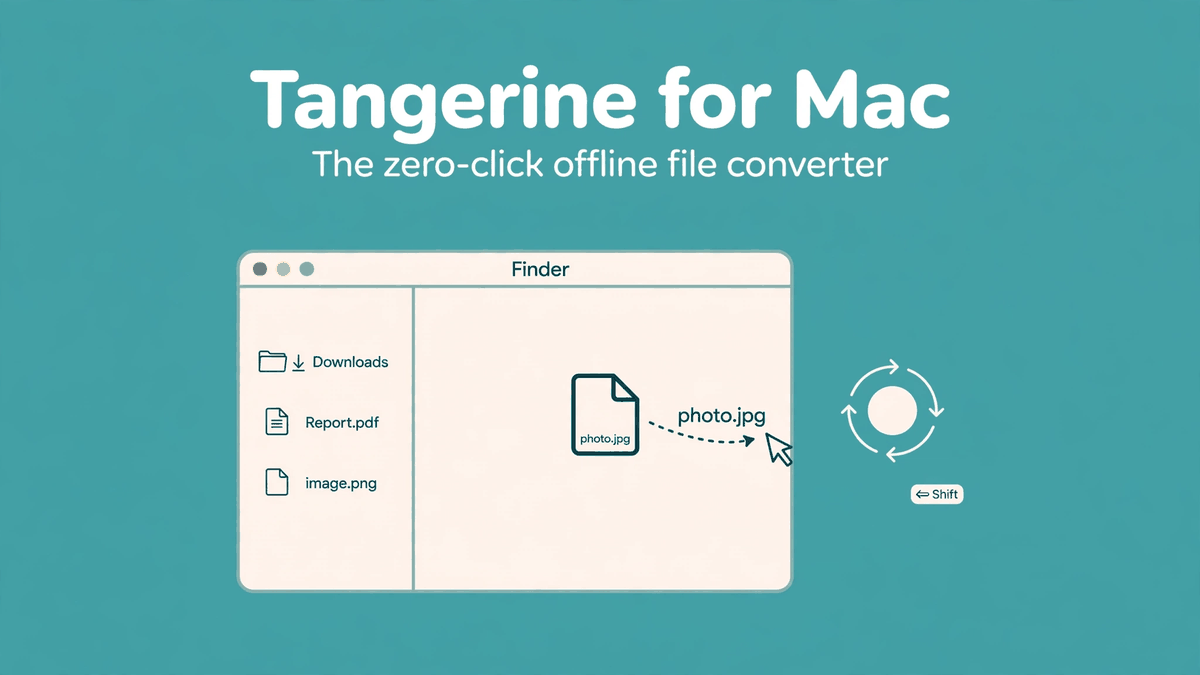
Tangerine is a file converter for Mac that works the way your hands already do. You drag a file, tap Shift, and drop. A wheel of conversion options opens right where your cursor is — you pick a format, let go, and it's done. No app window to open, no upload dialog, no waiting on a website. Everything happens on your Mac, offline.
It's made by Leap Studio, it's built for Apple silicon Macs running macOS 13 or later, and it's on the Mac App Store as "Tangerine: File Converter." The app launched on Product Hunt in September 2026 and picked up attention precisely because file conversion on Mac has always been more annoying than it should be.
Quick facts
- What it is: Zero-click offline file converter for macOS
- Made by: Leap Studio (official site: tangerineformac.com)
- Requires: Apple silicon Mac, macOS 13 or later
- Conversions: 275 options across images, video, audio, documents, spreadsheets, and archives
- Extras: 26 advanced file tools and 6 file actions
- Price: Free to try; Tangerine Full Unlock is a $29.99 in-app purchase (check the Mac App Store for current pricing)
- Privacy: Everything runs locally — your files are never uploaded anywhere
How it works: the Shift-drag gesture
Here's the whole interaction. You start dragging a file like you normally would — to move it, to attach it, whatever. Mid-drag, you tap the Shift key. A radial wheel pops up under your cursor with the conversion options that make sense for that file type. You move to the one you want, release the mouse, and the converted file lands next to the original.
The wheel stays open until you drop or cancel, so there's no rush. Changed your mind? Hit Escape. Want a different category of options? The keys switch wheels: Shift for conversions, Command for file tools, Control for file actions. You can also just press Enter on a file to open the format menu and navigate with arrow keys.
It sounds small, but it removes the entire ritual of converting files: no opening a converter app, no dragging into a window, no picking output folders, no deleting the window afterward. The conversion happens in your flow, wherever you already are — Finder, Desktop, a folder window.
275 conversion options, organized by file type
Tangerine covers the formats people actually run into. Here's what's supported, straight from the official specs:
Images
Convert between JPG, PNG, WebP, HEIC, TIFF, AVIF, and BMP, or export to PDF. SVG works as input. This alone replaces a whole category of "HEIC to JPG" web tools — and unlike those sites, your photos never leave your Mac.
Video and audio
Video converts between MP4, MOV, MKV, WebM, AVI, WMV, and GIF, with MP3 export for pulling audio out of clips. Audio covers MP3, M4A, WAV, FLAC, OGG, Opus, AIFF, and WMA. Handy when someone sends you a WebM or an OGG file and your editor only speaks MP4 and WAV.
PDFs and documents
PDFs convert to DOCX, Pages, PPTX, XLSX, JPG, PNG, EPUB, TXT, and Markdown — all pages, with images at 300 DPI, which matters if the PDF needs to stay print-quality. Going the other way, documents in DOCX, Pages, Markdown, TXT, EPUB, and RTF convert with HTML export available. Slides go PPT/PPTX to PDF, JPG, or PNG, and PDFs can become PPTX presentations.
Spreadsheets, subtitles, archives
Spreadsheets convert between XLSX, ODS, CSV, and TSV with PDF export (XLS works as input). Subtitles go between SRT and VTT with TXT export. Archives handle ZIP, TAR, and GZIP, with RAR as input — so you can get files out of a RAR without installing a separate extractor.
26 advanced file tools
Beyond format conversion, holding Command during a drag opens the tools wheel: compress files, crop and trim media, split and merge files, and more. These are the fiddly jobs you'd normally open a dedicated app for — shrinking an oversized PNG before uploading it, trimming the silence off a recording, splitting a big PDF.
Because the tools live in the same drag gesture, they feel like an extension of the Finder rather than a separate chore. Compress a screenshot mid-drag, drop it straight into your email.
6 file actions
Tap Control while dragging and you get actions instead of conversions: AirDrop, Float, Copy, Move, Copy Path, and Terminal. These work on folders and mixed selections too, and on files that have no conversion options at all. Copy Path alone is a small delight for anyone who lives in the Terminal — drag, Control, click, and the full path is on your clipboard.
File actions don't use your conversion allowance, so they don't count against any limits.
The privacy angle: nothing leaves your Mac
This is Tangerine's real differentiator. Online converters make you upload a copy of your file to somebody's server. That means your private documents, your photos, and all their embedded metadata sit on infrastructure you don't control, processed under policies you didn't read, deleted on somebody else's schedule — if at all.
Tangerine does everything locally. Conversions and file tools run on your Mac's own processor (which, on Apple silicon, chews through this stuff fast). Your files are never uploaded to Leap Studio or anyone else. For contracts, client work, personal photos, or anything with metadata you'd rather not share, that's not a nice-to-have — it's the whole point.
It also means it works offline. On a plane, in a café with terrible wifi, at a client site with a locked-down network — the converter doesn't care.
Pricing: free to try, $29.99 to unlock
Tangerine is free to download from the Mac App Store, and the full feature set unlocks with a one-time $29.99 in-app purchase called "Tangerine Full Unlock." That's all 275 conversion options, all 26 file tools, and the 6 file actions.
One-time pricing is worth noting because most utility apps have moved to subscriptions. $29.99 once, versus $5/month forever, is an easy calculation if you convert files even a few times a week. As always, confirm the current price on the App Store listing before buying — prices can change by region.
System requirements are narrow but clear: Apple silicon Macs (M1 and later) running macOS 13 Ventura or newer. Intel Macs aren't supported, which makes sense given how much of the conversion work leans on the newer chips.
Tangerine vs. the alternatives
Online converters (CloudConvert, Zamzar, and the hundred ad-covered clones) work in a browser and support a lot of formats — but they upload your files, they're slow on big media, and the free tiers are getting stingier. Tangerine beats them on privacy and speed, full stop.
Built-in macOS tools cover the basics: Preview converts images, QuickTime exports video, Automator can batch-rename. They're free and already installed, but they're scattered, clunky, and nowhere near 275 options.
Permute is the closest Mac-native rival — a well-loved drag-and-drop converter with a similar philosophy. HandBrake remains the king of free video transcoding if video is all you need. Tangerine's pitch against both is the zero-click gesture: the converter comes to your cursor instead of you going to the converter.
Frequently asked questions
Is Tangerine free?
Tangerine is free to download from the Mac App Store. Unlocking everything — all 275 conversions, 26 tools, and 6 actions — is a one-time $29.99 in-app purchase. Check the App Store for current pricing in your region.
Does Tangerine upload my files?
No. Everything runs locally on your Mac. Files are never uploaded to Leap Studio or any third party — that's the app's core privacy promise.
Which Macs does Tangerine support?
Apple silicon Macs (M1 and later) running macOS 13 Ventura or newer. Intel-based Macs are not supported.
What happens if I change my mind mid-drag?
Press Escape to cancel. The wheel closes and nothing is converted — your original file is untouched.
Who makes Tangerine?
Tangerine is made by Leap Studio. The official site is tangerineformac.com, and the app is distributed through the Mac App Store.
Where do converted files go?
The converted file lands next to the original, in the same folder. Your source file is never modified or deleted.
Bottom line: if you convert files on your Mac more than occasionally — HEIC photos, odd video formats, PDFs that need to become Word docs — Tangerine removes the friction and keeps your files off other people's servers. The Shift-drag gesture takes about thirty seconds to learn and then it's just how converting works.
Priya Desai
Original Post
No discussions yet. Be the first to start!